Computer Monitors
Products · Computer Monitors
4 active deals
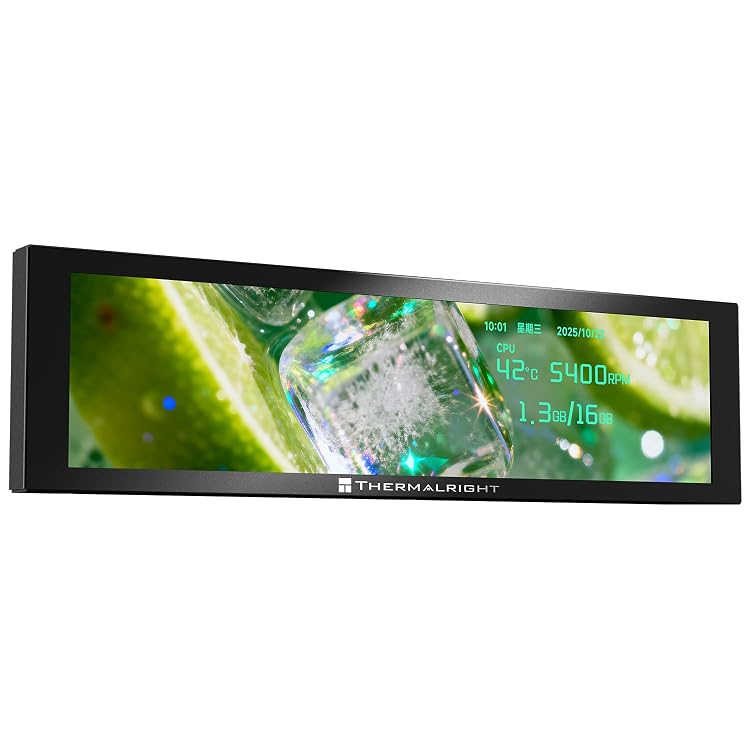
Thermalright Trofeo Vision 9.16 LCD Black 9.16-inch Display
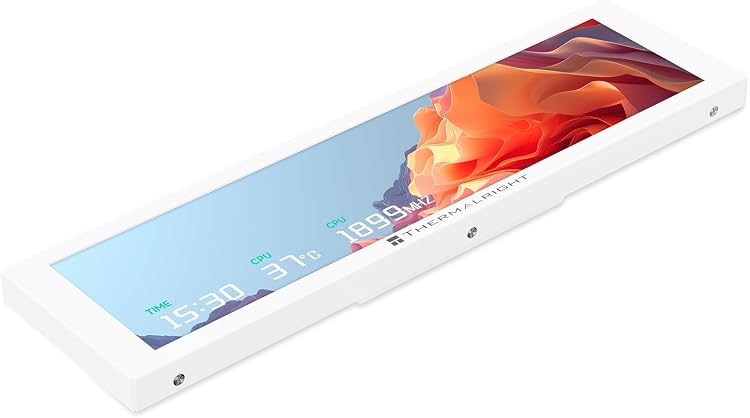
Thermalright Trofeo Vision 9.16 LCD Display, White
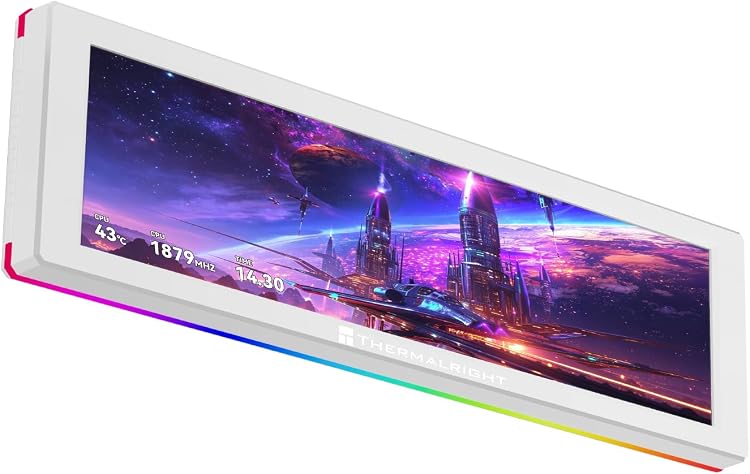
Thermalright Trofeo Vision 9.16 ARGB LCD White Display
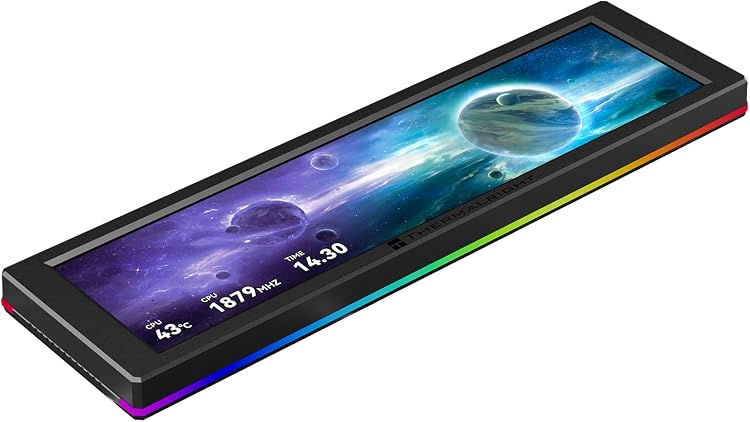
Thermalright Trofeo Vision 9.16 ARGB LCD IPS Display
How to choose a monitor: sharp text, smooth motion and useful connections
A monitor that is comfortable for documents is not always the most convincing choice for gaming in a dark room. Before choosing, decide what you need to improve: readability, workspace, motion or colour accuracy.
Screen size and refresh rate provide guidance, but they do not tell you how text will look or what your computer can deliver. The display, computer and connections need to work together.
Size and resolution: usable space and readable text
At 24 inches, Full HD provides around 92 pixels per inch. At 27 inches, that falls to about 82, making letters less defined at close range. For documents and spreadsheets, a 27-inch QHD display, at 2560 × 1440, offers around 109 ppi and balances sharpness with workspace.
At 32 inches, 4K reaches around 138 ppi. At 27 inches, about 163. Text becomes sharper, but you will probably need scaling to read comfortably. You will not necessarily get four times the desktop space of Full HD: that depends on scaling. Some older applications can look blurry when scaled.
IPS, VA and OLED: the trade-off depends on how you use them
IPS generally maintains colour better when viewed from an angle, which is useful for editing or sharing the screen, but its blacks can look greyish in a dark room. VA usually offers higher contrast. Some models leave dark trails behind scrolling text or in night-time scenes.
OLED combines deep blacks with fast transitions, but prolonged static elements carry a risk of burn-in or uneven wear. For long hours of office work, weigh up that trade-off and the warranty coverage. Certain subpixel layouts create coloured edges around letters. Higher density can reduce these without guaranteeing their elimination.
Colour for editing: coverage is not the same as accuracy
For images intended for the web, a good sRGB mode prevents a wide-gamut panel from oversaturating content without colour management. Adobe RGB may be useful for photography intended for print. P3 may matter for video, depending on the workflow. High coverage does not guarantee accurate colours.
Factory calibration provides a starting point. Demanding work benefits from measuring and profiling the display with a colorimeter. Uniformity matters too: an accurate centre does not correct tinted corners. Ten-bit colour can produce smoother gradients if the entire chain supports it, but it does not replace good calibration.
Refresh rate, VRR and what your GPU can actually run
For office work, moving from 60 to 100–120 Hz makes scrolling and cursor movement smoother. For gaming, 144–180 Hz is often a balanced choice. 240 Hz or more makes sense for competitive responsiveness if the computer produces enough frames. Running games at 4K demands considerably more from the GPU than QHD: prioritise resolution or fluidity according to your games.
VRR adjusts the refresh rate to the frame rate to reduce tearing and stutter within its operating range. Confirm compatibility with your GPU and the port you will use. An advertised “1 ms” does not describe every transition: an aggressive setting can create inverse ghosting through overshoot. Response-time and input-lag measurements matter, including at lower refresh rates.
Ergonomics that make a difference over long sessions
Height adjustment saves you from stacking books. Tilt and swivel help when changing position or sharing content. Pivoting into portrait orientation is useful for long documents, although it needs enough vertical clearance. A deep stand can take up more usable desk space than a few extra inches of screen.
A monitor arm frees up desk space, but needs a compatible VESA mount, sufficient capacity for the actual weight and a suitable desk. A matte finish reduces distinct reflections. It does not make light from a window disappear. In a dim room, being able to turn brightness down far enough matters more than a spectacular peak.
Ports, cables and USB-C: three separate functions
To get the full resolution, refresh rate and colour capability, the output, input and cable must support the combination. The advertised HDMI or DisplayPort version is not enough: the implemented bandwidth and any requirement for DSC compression matter. For text, aim for RGB or 4:4:4, without chroma subsampling. There is no universal maximum cable length: higher bandwidth places greater demands on the cable. A compatible active cable may suit longer runs.
USB-C does not guarantee video, fast data and laptop charging simultaneously. Video needs a compatible mode, such as DisplayPort Alt Mode. Some monitors share lanes between the image signal and USB, limiting resolution or peripheral speeds. Charging power matters too: 65 W may be enough for a lightweight laptop, but not for every model under load. The cable must support both the intended signal and power.
Ultrawide or two monitors: organise your windows
A 34-inch ultrawide at 3440 × 1440 maintains a density similar to a 27-inch QHD monitor, with more width rather than more height. It accommodates timelines and neighbouring windows without a central bezel. Games demand more GPU power than conventional QHD. Some titles show black bars or do not use the whole screen.
Two monitors let you separate tasks, rotate one and share only the other in meetings, at the cost of bezels, cables and desk space. When comparing offers, distinguish between variants: the same design can come with a different panel, stand, ports or USB-C charging capability. Paying more is worthwhile if it solves your layout needs or avoids an additional dock, not simply to accumulate unused features.